Yes, you read that right. The client I'm currently assigned to has a significant amount of legacy code in VB6. Not an ideal situation, but at least it isn't COBOL.
Anyway, one of the first things I noticed after loading a project was that I couldn't scroll through the code using the mouse wheel. It turns out the VB6 IDE didn't include wheel support. Fortunately, there's an add-in from Microsoft that fixes this. See KB article 837910 for the download and install instructions.
And yes, I'm aware that this probably doesn't pertain to you (if it does, I feel your pain.) The post is mainly a bookmark for my own reference. Any sympathy it generates is just a bonus :)
Friday, May 9, 2008

Thursday, May 8, 2008
DotNetMigrations
A friend of mine recently ported the Ruby on Rails "Migrations" tool to .Net. Assuming you can get all of the developers on a team to script out their database changes (and matching rollbacks) this tool will make it easier to build, update and deploy your database. It also becomes trivial to revert the changes when something breaks unexpectedly.
You can find details here.
You can find details here.
Adding entries to a file's right-click menu
When setting up a new developer computer, there are a number of tools and shortcuts I typically want. One of these is the ability to register COM dlls through Explorer's right-click menu. The easiest way to add this is through the registry.
Standard warning: I'm sure you're aware that messing with the registry may cause all sorts of problems. Proceed with caution. Unless of course it's not your computer you're messing with. In which case, hack away.
Start regedit from the Run dialog (keyboard shortcut: Win+R.) Under HKCR (HKEY_CLASSES_ROOT) locate the extension of the file to modify - .dll in this case. In the list of properties, you should see a "(Default)" string with the internal name of the file type. For dll it will be "dllfile."
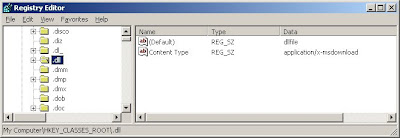
Further down, still under HKCR, will be an entry for dllfile. This is where the changes will be made.
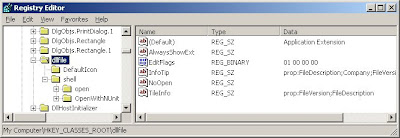
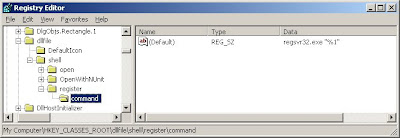
Under dllfile, expand the "shell" key. Add a new key and set the name as you want it to appear on the right-click menu (mine is "register".) Within that, add another key with the value "command." The "(Default)" string needs be set to the command that you want to run. For this exercise it will be:
regsvr32.exe "%1"
Regsvr32 is the command-line utility to register the COM component. The %1 in quotes tells Windows to pass in the filename and path as the first parameter.
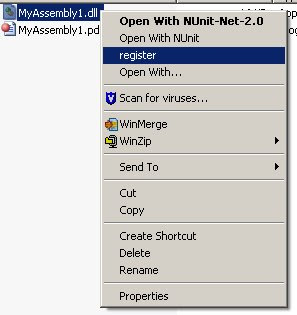
Once this is done, you should be able to right-click on any dll and see the new entry.
This takes care of one machine. Now that you have the shortcut defined, it would be useful to copy this to other machines. To do so, right-click on the "register" key and choose Export. Saving the selected branch will give you a .reg file with the changes. Copy the file to another computer and double-click to import it into the registry of that computer.
Standard warning: I'm sure you're aware that messing with the registry may cause all sorts of problems. Proceed with caution. Unless of course it's not your computer you're messing with. In which case, hack away.
Start regedit from the Run dialog (keyboard shortcut: Win+R.) Under HKCR (HKEY_CLASSES_ROOT) locate the extension of the file to modify - .dll in this case. In the list of properties, you should see a "(Default)" string with the internal name of the file type. For dll it will be "dllfile."

Further down, still under HKCR, will be an entry for dllfile. This is where the changes will be made.

Under dllfile, expand the "shell" key. Add a new key and set the name as you want it to appear on the right-click menu (mine is "register".) Within that, add another key with the value "command." The "(Default)" string needs be set to the command that you want to run. For this exercise it will be:
regsvr32.exe "%1"
Regsvr32 is the command-line utility to register the COM component. The %1 in quotes tells Windows to pass in the filename and path as the first parameter.

Once this is done, you should be able to right-click on any dll and see the new entry.

This takes care of one machine. Now that you have the shortcut defined, it would be useful to copy this to other machines. To do so, right-click on the "register" key and choose Export. Saving the selected branch will give you a .reg file with the changes. Copy the file to another computer and double-click to import it into the registry of that computer.
Friday, May 2, 2008
Metadata? But the code's right there...
Here's a highly complex bit of code I've been working on
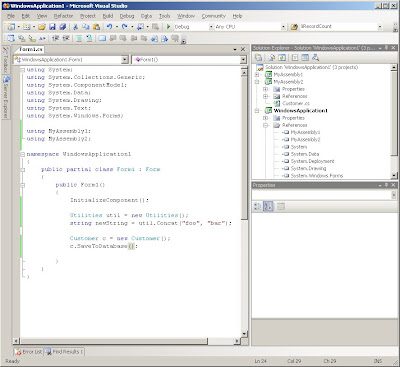
In this example I have a Customer class in MyAssembly2, which you can see is a separate project in the solution. On the main form of the application I'm making a call to the Customer instance method SaveToDatabase. If I right-click on the method call and choose "Go To Definition" I'm taken to a page of metadata.
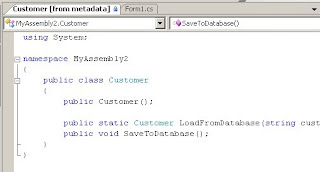
This lets me see method signatures but not the code within those methods. If I were to try the same thing for my Utilities class, however, I'm taken to the .cs file within MyAssembly1. So what's the difference?
Here are the reference properties for the two assemblies:
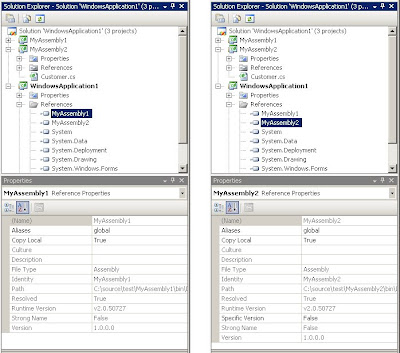
The two are almost identical, but if you look closely, you'll see that MyAssembly2 has a "Specific Version" property where MyAssembly1 does not. This is because MyAssembly2 was added as a file reference - we pointed VisualStudio at the compiled dll instead of the project. Because of this, VS doesn't know that the dll and project are really one and the same.
The fix is a simple matter of deleting the reference to MyAssembly2 and re-adding - this time as a project reference.

In this example I have a Customer class in MyAssembly2, which you can see is a separate project in the solution. On the main form of the application I'm making a call to the Customer instance method SaveToDatabase. If I right-click on the method call and choose "Go To Definition" I'm taken to a page of metadata.

This lets me see method signatures but not the code within those methods. If I were to try the same thing for my Utilities class, however, I'm taken to the .cs file within MyAssembly1. So what's the difference?
Here are the reference properties for the two assemblies:

The two are almost identical, but if you look closely, you'll see that MyAssembly2 has a "Specific Version" property where MyAssembly1 does not. This is because MyAssembly2 was added as a file reference - we pointed VisualStudio at the compiled dll instead of the project. Because of this, VS doesn't know that the dll and project are really one and the same.
The fix is a simple matter of deleting the reference to MyAssembly2 and re-adding - this time as a project reference.
Tuesday, April 29, 2008
Everyone should be good at something
Anyone who's worked with me in recent years knows how much I love deleting code. It could be removing something that's obsolete or refactoring to reduce duplication. Or maybe the requirements change mid-project. Needless to say, some question whether my SLOC (source lines of code) output is positive or negative.
Regardless, I stumbled upon a shortcut in VisualStudio (Shift + Del) that deletes the entire line where the cursor is located. No more selecting the whole line and then pressing Delete. I've become a code-deletion ninja!
Regardless, I stumbled upon a shortcut in VisualStudio (Shift + Del) that deletes the entire line where the cursor is located. No more selecting the whole line and then pressing Delete. I've become a code-deletion ninja!
Friday, March 14, 2008
Unlocking files when Visual Studio can't
There's an option in Visual Studio that, on compile, will pull all of your XML comments out into separate files. These can then be combined into a help file using a tool like Sandcastle. Most of the time this feature works correctly. If you cancel a build in process, or the compile fails, VS occasionally fails to release the file lock. From that point on, the compile fails with an error stating the file is in use by another process. I've not found a way within VS to force an unlock short of closing the app.
There is, however, a faster way using Process Explorer. Start Process Explorer and select Find > Find Handle or DLL... from the menu. Enter all or part of the filename currently locked, then click Search. You should see the guilty process - devenv.exe in this case.
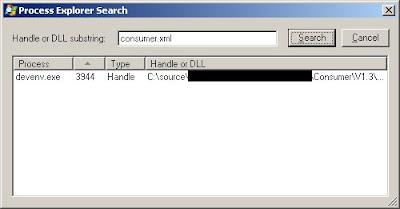
Double-clicking on the entry will display a list of handles for that app, with the selected handle highlighted. Right-click on the selection and choose Close Handle. You'll see a dialog warning about potential crashes or system instability (meaning don't try this with a system file.) Tell it to continue and the handle will be closed. VS will again compile without issue.
There is, however, a faster way using Process Explorer. Start Process Explorer and select Find > Find Handle or DLL... from the menu. Enter all or part of the filename currently locked, then click Search. You should see the guilty process - devenv.exe in this case.

Double-clicking on the entry will display a list of handles for that app, with the selected handle highlighted. Right-click on the selection and choose Close Handle. You'll see a dialog warning about potential crashes or system instability (meaning don't try this with a system file.) Tell it to continue and the handle will be closed. VS will again compile without issue.
Tuesday, February 26, 2008
I can read the file myself, thank you
I've been downloading a number of PDFs lately, and the one thing that has been bugging me is the slow performance of Adobe Reader. Fortunately, I've found at least one of the major causes - the accessibility features. When opening a PDF, I was occasionally presented with a dialog stating "Please wait while the document is being prepared for reading." A quick search on the web located others with the same problem. This post, along with one of the comments, led me to the solution:
Locate the install folder (C:\Program Files\Adobe\Reader 8.0\Reader\plug_ins) and delete the following files
Though I didn't break out the stopwatch, the performance improvement was significant. Before, there would be a pause after scrolling more than a page or two. Now, I can hold the PageDown key and see dozens of pages fly by before any pause (probably to allocate more memory.)
Locate the install folder (C:\Program Files\Adobe\Reader 8.0\Reader\plug_ins) and delete the following files
- Accessibility.api
- MakeAccessible.api
- ReadOutLoud.api
Though I didn't break out the stopwatch, the performance improvement was significant. Before, there would be a pause after scrolling more than a page or two. Now, I can hold the PageDown key and see dozens of pages fly by before any pause (probably to allocate more memory.)
Subscribe to:
Posts (Atom)